Wednesday, October 19, 2011

Watchtower Library under Ubuntu 11.10


*** Added extra info as of Nov 6th, 2011 ***

*** Added extra info as of Nov 9th, 2011 ***

*** Added extra info as of Nov 10th, 2011 ***

I have had several comments mailed to me about the Watchtower Library not functioning in Ubuntu 11.10.

I've been able to get it to work by using the desktop config file created during install of the library. (The file with the Watchtower Library icon on it, on the desktop.)

I hid the file in my home folder to keep the icon out of the way, so I did not delete the file on accident, so this is optional.

If you are interested in this option, I did it by using a hidden folder. You can do this by right clicking in your home folder, choosing add folder, and when naming it add a period before the name, i.e. .hidden, is a hidden folder named hidden.

You can see the folder again by holding control and typing h.

Run the library using the icon, and then I suggest while the library is running you go to the bar on the left, right click the library icon, and choose "keep in launcher".

again this is optional, but if you use the library as much as I do, it will pay off in spades later.

If the icon does not launch, then right click it, choose properties, and then click  on the permissions tab,which will be on the top left of the properties window you just opened.

Then if the "Allow executing the file as a program" is not checked, then check it.

Press close, and try to run the library through the desktop config file again.

If you disposed of the file, then I have a copy of mine available here:
Denny's Linux Box File Storage

If your browser does not offer to download the file, then you can choose file, and then save page as, or ctrl s in most cases. make sure to save the page as "Watchtower Library 2010 - English.desktop"

If you have to use my file, you will have to make a small change.

This file is designed around my user name, denny.

If your user name is different, and most likely it is, then you will have to edit the file. you can do this by right clicking the file and choosing properties.

in the 'command:' box, it will say this:

env WINEPREFIX="/home/denny/.wine" wine C:\\Program\ Files\\Watchtower\\Watchtower\ Library\ 2010\\E\\WTLibrary.exe

if your user name is peter, for instance, then you will have to change the line to read:

env WINEPREFIX="/home/peter/.wine" wine C:\\Program\ Files\\Watchtower\\Watchtower\ Library\ 2010\\E\\WTLibrary.exe 

This is the extent of my knowledge currently, since I have not had this problem personally. If anyone gets this error, and can get me the error reports from wine, I may be able to continue helping you.

Please feel free to comment here or e-mail me at dennygoot@gmail.com.


Added Nov 6th, 2011. 

I wanted to mention that one of the causes of the library not functioning is a problem with wine not recognizing where the dll's for the library are.

This doesn't happen all the time, and didn't happen to me on my install, so I assumed that the old problem no longer existed. 

Thanks to a brother named Andrew that wrote me about this very same problem, I am posting my fix here.

Copy the dll's from the /home/denny/.wine/drive_c/Program Files/Watchtower/MEPS Platform 2.3/ folder to the /home/denny/.wine/drive_c/windows/system32/ folder.

You may need a complete reboot for this problem to be solved. I also have added these same dll's to the /home/denny/.wine/drive_c/windows/system/ folder. (This should not be neccessary, I am just always taking extra steps just to make sure problems don't arise.)

Keep in mind once again my username denny should be replaced with your username. (i.e. paul, would be /home/paul/.wine/drive_c/etc... )

Also keep in mind that the wine folder is hidden (hence the .wine, instead of wine folder name), which means you might have to hold control and type h to see the wine folder.

Again, if there is any problems with this work around please email me at dennygoot@gmail.com.

Added Nov 9th, 2011

Dave, an Ubuntu user from the Hartlepool South congregation in N.E. England  has just succeeded in installing the Watchtower library on Ubuntu 11.10 (after some difficulty). 

Thanks to Dave, here are some tips if you still don't have the library running, in Dave's own words:

Here's what DID NOT work:

1. Open terminal, type sudo apt-get install wine1.3 (neither did wine1.2) Watchtower library installed but would not run. Sadly, swapping dlls around did not help as per Andrew's suggestion.

2. Using Synaptic Package Manager to install Wine.

So here's what I did - I completely removed every last vestige of Wine from my PC.

1. Firstly I used Synaptic to un-install Wine but this did not remove it completely.

2. So using the terminal I entered sudo apt-get purge wine1.3

3. Then I sudo apt-get purge wine1.2

4. Then sudo apt-get autoremove to get rid of all other Wine-related programs.

5. Then I went to http://www.winehq.org/download/ubuntu and followed the instructions to the letter.

Following "I completely removed every last vestige of Wine from my PC." I should have added that I deleted the hidden folder .Wine in my home folder.

Also, I used the Alternative Command Line Instructions for installing Wine.

I now have the Watchtower library up and running just fine.

Best regards,
Dave

Added Nov 10th, 2011:

A brother in my kingdom hall had this very same problem, and this fix mentioned at wine hq solved it.

In terminal (hold control, alt, and press t) i typed this in:
rm ~/.wine/drive_c/windows/winsxs/manifests/*.vc90.*_deadbeef.manifest

After running that command, type exit in the terminal, and try running the library again.

As a side note, I worked out this command on my machine, it will copy the dll's over for you automatically:

cp /home/*/.wine/drive_c/Program\ Files/Watchtower/MEPS\ Platform\ 2.3/*.dll /home/*/.wine/drive_c/windows/system32/

It worked for my brother, perhaps this is your issue too.


Thank you Andrew and Dave for helping me and others to solve this problem!

-Denny :)


This is how my set up looks like after my work around:

Monday, September 12, 2011

SDF a great free UNIX shell


This is my shell, my home away from home...

Here is what SDF has to say about itself:

" The Super Dimension Fortress is a networked community of free
software authors, teachers, librarians, students, researchers, hobbyists,
computer enthusiasts, the aural and visually impaired. It is operated
as a recognized non-profit 501(c)(7) and is supported by its members.

Our mission is to provide remotely accessible computing facilities for
the advancement of public education, cultural enrichment, scientific
research and recreation. Members can interact electronically with each
other regardless of their location using passive or interactive forums.
Further purposes include the recreational exchange of information
concerning the Liberal and Fine Arts.

Members have UNIX shell access to games, email, usenet, chat, bboard,
webspace, gopherspace, programming utilities, archivers, browsers, and
more. The SDF community is made up of caring, highly skilled people
who operate behind the scenes to maintain a non-commercial INTERNET."

If you are interested in diving into this unique group of people from all walks of life, then go here:

http://sdf.org/

And remember to click on this:

***To create your own free shell account click here***

Wednesday, August 31, 2011

Mageia, a fork of Mandriva


Mandriva is one of my favorite Linux based operating systems.

But Mandriva has had some serious problems in the past year or two that has shaken users and developers confidence in it.

That is why I want to bring out a new fork to Mandriva who's sole purpose is to work around those failings, and develop a system for which the users, designers, developers, packagers, translators, testers, and advocates can have a say as to how it is developed.

It is also not orientated around business. It's not owned by an entity trying to make financial gain on the project, it's owned by a not for profit organization.

It's called Mageia.

I personally find this idea very freeing.

If your a fan of Mandriva, but have had concerns about it's direction or lack of development, then I encourage you to give it a try.

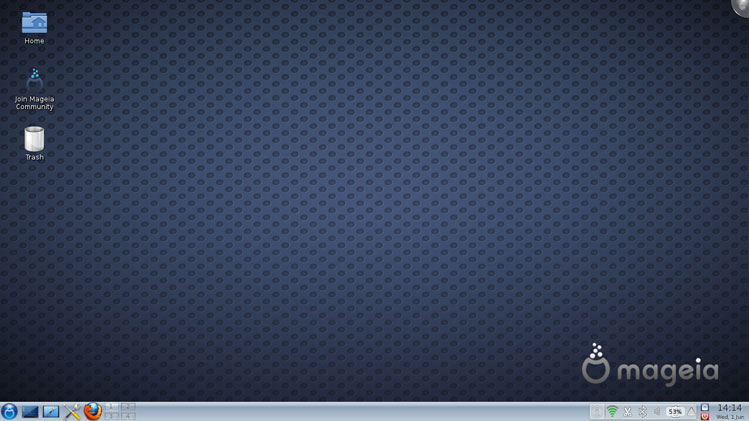
Here is a screenshot of the operating system:


If you are interested in downloading it or reading more about it, their website is http://www.mageia.org/

I also suggest you read the article they wrote about the foundation behind the group making Mageia. I think you will find it's well thought over and will give the project strength.

It's available here: http://www.mageia.org/en/about/2010-sept-announcement.html

Monday, August 29, 2011

Minitube, Youtube in style!


If you are like me, and not a huge fan of installing the flashplayer plugin to watch Youtube videos, then I suggest you try Minitube!

It does not use flash to view the Youtube videos, and in my opinion works much better than Youtube on Firefox or Chrome with Flashplayer plugin installed.

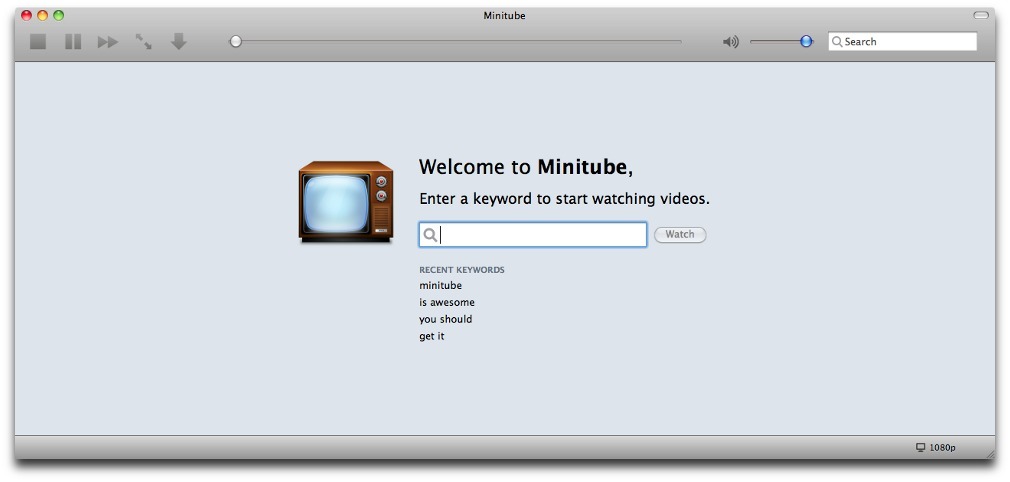
"Minitube is a YouTube desktop application.

With it you can watch YouTube videos in a new way: you type a keyword, Minitube gives you an endless video stream.

Minitube is not about cloning the original YouTube web interface, it aims to create a new TV-like experience. " -Minitube's Website

I suggest that whether you are a Windows, Mac OS, Linux or Other operating system user, that you download it directly from the Minitube Website, especially if your a Ubuntu user, because the version in the repos is too old, and doesn't work properly.


Saturday, August 20, 2011

Ubuntu help, in live chat form!

One of the nicest things i like about Ubuntu, is the dedicated people surrounding it.

For some of you, that might mean the hard working people at Canonical, or the people working on projects or software.

All these people do help a lot, and i am personally very greatful for their work.

Who i am referring to though are the people who help others out with technical issues on the Ubuntu irc chat channel.

If you know about IRC, you probably have already been there, but in case you havent, it's at irc.freenode.org, and the channel is #ubuntu.

If you are not familiar with IRC (Internet Relay Chat), then to get assistance, you can go here: http://webchat.freenode.net/

Once you are there, type in a nickname, and where it says channel, type #ubuntu (you do need the pound sign... #)

Then just type in the "reCaptcha" code, if you can't see what it says, you can hear an audio word by clicking the audio captcha box, or you can click the reload button for a different word.

Then click on the connect button, and ask your question once you are connected.

If this all seems a bit too technical, i have a link that will give you a nickname and automatically connect you to the ubuntu channel, it is here:

http://webchat.freenode.net/?randomnick=1&channels=ubuntu&uio=d4

*Please don't ask to ask a question, just ask your question.

Saturday, August 13, 2011

Tux Paint, kids being creative


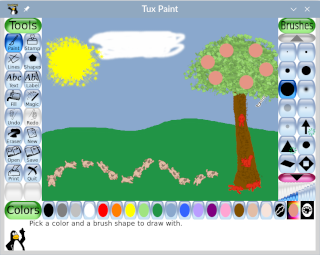
"Tux Paint is a free, award-winning drawing program for children ages 3 to 12 (for example, preschool and K-6). It combines an easy-to-use interface, fun sound effects, and an encouraging cartoon mascot who guides children as they use the program.

Kids are presented with a blank canvas and a variety of drawing tools to help them be creative." -Tux Paint's website


My nephews love this program!


There are tons of "stamps" which are images of everything from animals to fruit to band equipment, cars, old world buildings, planets, and on and on..


And a "Magic" button that has filters and drawing tools enough to almost make a GIMP or Photoshop enthusiast green with envy, without the difficulty associated with those 2 programs.


And my 6 year old nephew giggles at the goofy sound effects, everything from a dialog box sound "Na na na!" to the stamp for duck, that says "Duck". (And many more...)


It's a great way to get them into computers while actually doing something creative instead of them just being plunked down in front of a video game, becoming mindless zombies. :)


If you want to download/install this program, you can get it from apt, synaptic, (or other package manager) or from their website http://tuxpaint.org/.

Friday, August 12, 2011

XFCE Desktop Environment


"Xfce is a lightweight desktop environment for UNIX-like operating systems. It aims to be fast and low on system resources, while still being visually appealing and user friendly." -XFCE Website

I love this desktop environment!

With a hint of gnome-ish design, but a much smaller footprint, XFCE is an awesome alternative to the big brutes like KDE 4, Gnome 3 and Unity. (Especially KDE)

The one small drawback I personally have with XFCE is no gui menu editor.

It's pretty easy to change the XFCE menu though, so this is a small setback at best.

With the change to Unity in Ubuntu, I think more people will find Xubuntu a faster, more adjustable solution to their needs.

You can get XFCE via apt or synaptic, or by going here.