One of the nicest things i like about Ubuntu, is the dedicated people surrounding it.
For some of you, that might mean the hard working people at Canonical, or the people working on projects or software.
All these people do help a lot, and i am personally very greatful for their work.
Who i am referring to though are the people who help others out with technical issues on the Ubuntu irc chat channel.
If you know about IRC, you probably have already been there, but in case you havent, it's at irc.freenode.org, and the channel is #ubuntu.
If you are not familiar with IRC (Internet Relay Chat), then to get assistance, you can go here: http://webchat.freenode.net/
Once you are there, type in a nickname, and where it says channel, type #ubuntu (you do need the pound sign... #)
Then just type in the "reCaptcha" code, if you can't see what it says, you can hear an audio word by clicking the audio captcha box, or you can click the reload button for a different word.
Then click on the connect button, and ask your question once you are connected.
If this all seems a bit too technical, i have a link that will give you a nickname and automatically connect you to the ubuntu channel, it is here:
http://webchat.freenode.net/?randomnick=1&channels=ubuntu&uio=d4
*Please don't ask to ask a question, just ask your question.

A passion for Linux, a passion for open source, a passion for freedom
Saturday, August 20, 2011


Saturday, August 13, 2011
Tux Paint, kids being creative

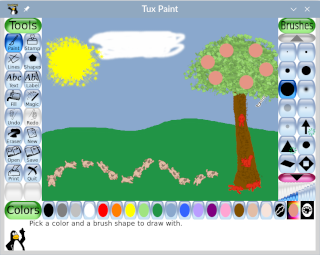
"Tux Paint is a free, award-winning drawing program for children ages 3 to 12 (for example, preschool and K-6). It combines an easy-to-use interface, fun sound effects, and an encouraging cartoon mascot who guides children as they use the program.
Kids are presented with a blank canvas and a variety of drawing tools to help them be creative." -Tux Paint's website
My nephews love this program!
There are tons of "stamps" which are images of everything from animals to fruit to band equipment, cars, old world buildings, planets, and on and on..
And a "Magic" button that has filters and drawing tools enough to almost make a GIMP or Photoshop enthusiast green with envy, without the difficulty associated with those 2 programs.
And my 6 year old nephew giggles at the goofy sound effects, everything from a dialog box sound "Na na na!" to the stamp for duck, that says "Duck". (And many more...)
It's a great way to get them into computers while actually doing something creative instead of them just being plunked down in front of a video game, becoming mindless zombies. :)
If you want to download/install this program, you can get it from apt, synaptic, (or other package manager) or from their website http://tuxpaint.org/.
Friday, August 12, 2011
XFCE Desktop Environment

"Xfce is a lightweight desktop environment for UNIX-like operating systems. It aims to be fast and low on system resources, while still being visually appealing and user friendly." -XFCE Website
I love this desktop environment!
With a hint of gnome-ish design, but a much smaller footprint, XFCE is an awesome alternative to the big brutes like KDE 4, Gnome 3 and Unity. (Especially KDE)
The one small drawback I personally have with XFCE is no gui menu editor.
It's pretty easy to change the XFCE menu though, so this is a small setback at best.
With the change to Unity in Ubuntu, I think more people will find Xubuntu a faster, more adjustable solution to their needs.
You can get XFCE via apt or synaptic, or by going here.
Saturday, August 6, 2011
Gnome 2, still the best
I have been trying to find a suitable replacement for Gnome 2, slated to be off the repos in Ubuntu in 2013.
I came up with nothing.
I do see a glimmer of hope from a post made at http://askubuntu.com/questions/51470/is-gnome2-x-going-to-be-caompletely-obsolete-from-all-linux-distro
I have tried every desktop environment in the repositories, and some not in the repos, like AWN.
I must admit, if there were only Unity or Gnome 3 to choose from, I would choose Gnome 3.
XFCE is nice, and very "Gnome 2"-ish. But it has some quarks and ties to Gnome 2 that make it iffy for me. I hope XFCE survives long past Gnome 2, because it is better than Unity and Gnome 3 combined.
Having had no luck finding a KDE 4 minus all the glitz and extra junk, KDE 4 is out for me as well. (I miss simpler older KDE 3. KISS!)
To those of you who are going to comment that I could remove the junk, keep in mind that I am writing for the person who just turns it on and is new to linux, and it's desktop environments.
I hope that Gnome 3 will grow, because the direction that Unity is going is wrong.
A person on the Ubuntu forum pages said "How long will you stand still?"
I tell you that if i stand still while you walk backwards with Unity, I am at a better position.
In closing, this is of coarse my opinion, but I believe it also accurately portrays the strongly negative feelings for the currently offered Unity and Gnome 3, by a large percentage of the Ubuntu user base.
I came up with nothing.
I do see a glimmer of hope from a post made at http://askubuntu.com/questions/51470/is-gnome2-x-going-to-be-caompletely-obsolete-from-all-linux-distro
I have tried every desktop environment in the repositories, and some not in the repos, like AWN.
I must admit, if there were only Unity or Gnome 3 to choose from, I would choose Gnome 3.
XFCE is nice, and very "Gnome 2"-ish. But it has some quarks and ties to Gnome 2 that make it iffy for me. I hope XFCE survives long past Gnome 2, because it is better than Unity and Gnome 3 combined.
Having had no luck finding a KDE 4 minus all the glitz and extra junk, KDE 4 is out for me as well. (I miss simpler older KDE 3. KISS!)
To those of you who are going to comment that I could remove the junk, keep in mind that I am writing for the person who just turns it on and is new to linux, and it's desktop environments.
I hope that Gnome 3 will grow, because the direction that Unity is going is wrong.
A person on the Ubuntu forum pages said "How long will you stand still?"
I tell you that if i stand still while you walk backwards with Unity, I am at a better position.
In closing, this is of coarse my opinion, but I believe it also accurately portrays the strongly negative feelings for the currently offered Unity and Gnome 3, by a large percentage of the Ubuntu user base.
Thursday, August 4, 2011
Unity, slightly less annoying.
I absolutely hated Unity to the point of writing some slightly heated stuff on the Ubuntu message boards on the net.
I have to admit that although I am, and was right about Unity not being very user friendly, I do see the Ubuntu team(s) working to make it better though, and hopefully they have heard our voices.
The main pet peave for me is that the min max and close buttons belong on the right, and in that order, and should be an option (without going into gconf-editor) for the end user immediately, if not the default setting.
The world is used to and likes those buttons where I mentioned they should be, and shouldn't have to change because someone on one of the Ubuntu team(s) or someone at Canonical thinks that's the way it should be.
Just my rant on an otherwise beautiful operating system. I still love Ubuntu,
I just want Unity developers to keep in mind that Unity should fit the user, not the user fitting Unity, which is ridiculous.
I have to admit that although I am, and was right about Unity not being very user friendly, I do see the Ubuntu team(s) working to make it better though, and hopefully they have heard our voices.
The main pet peave for me is that the min max and close buttons belong on the right, and in that order, and should be an option (without going into gconf-editor) for the end user immediately, if not the default setting.
The world is used to and likes those buttons where I mentioned they should be, and shouldn't have to change because someone on one of the Ubuntu team(s) or someone at Canonical thinks that's the way it should be.
Just my rant on an otherwise beautiful operating system. I still love Ubuntu,
I just want Unity developers to keep in mind that Unity should fit the user, not the user fitting Unity, which is ridiculous.
Monday, July 25, 2011
Celestia, Your gateway to the stars

I have been using Celestia since the beginning of the decade.
It is an excellent tool for letting you take a 3d look at the universe.
This is what the creator(s) of Celestia have to say about the program:
"Welcome to Celestia
... The free space simulation that lets you explore our universe in three dimensions. Celestia runs on Windows, Linux, and Mac OS X.
Unlike most planetarium software, Celestia doesn't confine you to the surface of the Earth. You can travel throughout the solar system, to any of over 100,000 stars, or even beyond the galaxy.
All movement in Celestia is seamless; the exponential zoom feature lets you explore space across a huge range of scales, from galaxy clusters down to spacecraft only a few meters across. A 'point-and-goto' interface makes it simple to navigate through the universe to the object you want to visit.
Celestia is expandable. Celestia comes with a large catalog of stars, galaxies, planets, moons, asteroids, comets, and spacecraft. If that's not enough, you can download dozens of easy to install add-ons with more objects."
Here are some of the pictures I have taken from my own Celestia usage:

ISS coming over the sunrise of Earth

Mars Odyssey overlooking Mars

Neptune and it's moon Proteus aligned together and facing the Sun.
I personally like the verbose information option, and I like to use the ] key to make as many stars visible as possible, although for the images here I didn't, to keep them from being overly bright.
If you are interested in this program for Windows, it is available at the Celestia website, under the download tab, which is available here:
http://www.shatters.net/celestia/
If you would want the program for Ubuntu, then I suggest using synaptic package manager.
You will want celestia-gnome, celestia-common and I also suggest celestia-common-nonfree, or some planets and the moon will have no texture. (I.E. Mars will be a simple colored sphere.)
For other versions of Linux and Mac OS X, the Celestia website can get you started on the right path, if you don't have a package manager for your distro, or if your distro doesn't have the package available yet.
I personally put a copy onto cd and gave it to my old high school, It's a great way to get kids interested in astronomy.
Saturday, July 2, 2011
Creating ISO images in Ubuntu
I have been looking for a tool for a while that would allow me to create,
open and edit ISO's on the fly as I saw fit.
I am still looking for this program, but I accidentally stumbled upon the best ISO creator I have seen yet for Ubuntu.
It's simple, already installed Brasero.
I don't burn CDs, or rip audio files from them, so I haven't really messed with Brasero until now.
It doesn't edit or open ISO files, just so I don't confuse the matter.
To make an ISO using Brasero, first you must choose "Data Project" from the Brasero main screen.
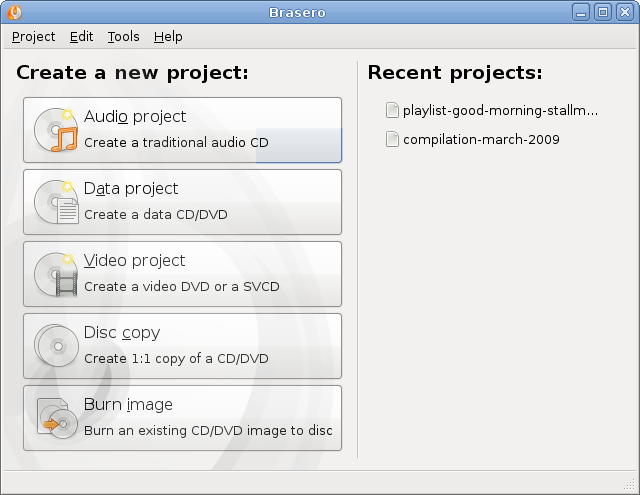
If there is no blank CD in the drive, then Brasero might have chosen on the very bottom 'Image File: "/home/(your user name)/brasero.iso"'
If this is the case, then all you have to do is drag the files you want onto Brasero, and then choose burn.
If it doesn't give you the "Image File:" option on the bottom, you can click the down arrow to the right of the bottom field to choose the option you want.
(P.S. the "/home/(your user name)/brasero.iso" will change to whatever username you have chosen upon installation of Ubuntu, so mine would look like this: /home/denny/brasero.iso.)
open and edit ISO's on the fly as I saw fit.
I am still looking for this program, but I accidentally stumbled upon the best ISO creator I have seen yet for Ubuntu.
It's simple, already installed Brasero.
I don't burn CDs, or rip audio files from them, so I haven't really messed with Brasero until now.
It doesn't edit or open ISO files, just so I don't confuse the matter.
To make an ISO using Brasero, first you must choose "Data Project" from the Brasero main screen.
If there is no blank CD in the drive, then Brasero might have chosen on the very bottom 'Image File: "/home/(your user name)/brasero.iso"'
If this is the case, then all you have to do is drag the files you want onto Brasero, and then choose burn.
If it doesn't give you the "Image File:" option on the bottom, you can click the down arrow to the right of the bottom field to choose the option you want.
(P.S. the "/home/(your user name)/brasero.iso" will change to whatever username you have chosen upon installation of Ubuntu, so mine would look like this: /home/denny/brasero.iso.)
Subscribe to:
Posts (Atom)