Saturday, February 17, 2024

Damn Small Linux is back, and I am very happy!


I used to use Damn Small Linux, or "DSL" a lot back in the day.


If you are old enough, you remember cd's that were the size of a 50 cent piece (or a little bigger).

The entire distribution would fit on one, and was only 50 mb in size. That is insanely tiny.


In order to make a distribution these days that is flushed out for most users, it has to be larger.

DSL now is about 700 mb, but I have been pleasantly surprised at how it had some of the old DSL charm.


Then again, I could be seeing things through nostalgic glasses, but it's still cool.

The funny part is, what I used DSL for most back then was fixing windows problems. :D


Here's my screenshot: (Click to enlarge)


If you look, you won't see conky. I always felt like it was a neat idea, but got in my way, so yeah, I turned it off.


The creators of "The New DSL 2024" have this to say:

"The New DSL 2024 has been reborn as a compact Linux distribution tailored for low-spec x86 computers. It packs a lot of applications into a small package. All the applications are chosen for their functionality, small size, and low dependencies. DSL 2024 also has many text-based applications that make it handy to use in a term window or TTY.

DSL 2024 currently only ships with two window managers: Fluxbox and JWM. Both are lightweight, fairly intuitive, and easy to use." -https://www.damnsmalllinux.org/


If you are the nostalgic geek I am, or just love checking out Linux distro's, I suggest checking it out. :)

-Denny

Tuesday, September 12, 2023

I met myself on the internet today...

My "Val-U-Mart"

If you are as much of a geek as I am, sometimes you run into "yourself" on old, forgotten parts of the internet that still exist.

I wrote some programming for a text game nearly quite some time ago. Turns out the game is still working, and you can still connect to it.

My job was to make a run down "lot property" in this game. So I decided to write this about the "Val-U-Mart" I programmed in 1993.

So this is the description I wrote for the outside of the mart:

A large old Kmart with yellowed walls, a food court in the back, and a frosty machine. There are still blue light specials running throughout the store even though this hasn't been a Kmart in decades. Overly anxious clerks, most of which are pimply faced teenagers run to and fro throughout the store. Every once and a while you hear a crackly outdated P.A. system tell you where the next sale will be.

And here's the bathroom:

A dingy aged bath room that has not been cleaned enough for your liking. Rude comments litter the walls.

And the food court:

A strange little food court sits in the back of this now re-purposed K-Mart. Luncheon personnel are ready to take your order, all of them wearing name tags and years of disgust at having to work here. Most of the denizens of the food court are older ladies in shoes and clothing completely lacking fashion, but replete with sensibility. This little room is very, very heavily "70's wooden paneling" looking. The menus all have water or coffee marks on them.

As you can see, I once fancied myself a bit of an author. :D

I know this won't be interesting to most people, so if this just serves as the fun dark web chunk I stubbed my toe on today, so be it. :)


Friday, April 21, 2023

CrunchBang ++ bringing back all those old school vibes of original Crunch.


First off, I have to admit that I am looking at CrunchBang ++ with a bit of nostalgia.

I used to think that CrunchBang back in the day was the jam, and I ran CB specifically for years.


But I will admit now, that nostalgia aside, the new reiteration of CB is just as awesome and simple as it ever was.


If you visited the website, you will find that all the screenshots of this "no frills" Linux based OpenBox distribution are grey and lifeless.


While this is how CB "ships", it takes very little to liven it up.


Here's my desktop with CB ++, and mild changes to make it not so "dish water grey":

(Click to enlarge)

Why would you get CB ++, besides nostalgia? It's very light on it's feet.


Fully booted, it was only using 464 mb of ram, shown here...


(Click to enlarge)

I'm enjoying my trip into nostalgia, for sure, but I am also impressed with how snappy this thing is.

If you want to try it out yourself, here's the website for you: https://crunchbangplusplus.org/

-Denny

Sunday, April 24, 2022

Zoom not working in Ubuntu 22.04

Currently in Ubuntu 22.04, zoom has an error and closes.

Thanks to some digging, I found a solution.

Running the command zoom --disable-gpu-sandbox in a terminal window will successfully launch zoom. (There have been some buggy error messages for some people, but it still runs)

Or, if you want a more permanent solution, you can change the file in /usr/share/applications called Zoom.desktop. 

Remember to use some option to gain sudo privileges to this file. I ran 'sudo nano /usr/share/applications Zoom.desktop' to do so.


That file looks like this:


[Desktop Entry]

Name=Zoom

Comment=Zoom Video Conference

Exec=/usr/bin/zoom %U

Icon=Zoom

Terminal=false

Type=Application

Encoding=UTF-8

Categories=Network;Application;

StartupWMClass=zoom

MimeType=x-scheme-handler/zoommtg;x-scheme-handler/zoomus;x-scheme-handler/tel;x-scheme-handler/callto;x-scheme-handler/zoomphonecall;application/x-zoom

X-KDE-Protocols=zoommtg;zoomus;tel;callto;zoomphonecall;

Name[en_US]=Zoom


I changed the "Exec=/usr/bin/zoom %U" part to read "Exec=/usr/bin/zoom --disable-gpu-sandbox" and saved the file. 


After this, Zoom launched like a charm for me.


I hope this is helpful,

-Denny

Saturday, April 2, 2022

Screen corruption in Ubuntu 22.04 via Nvidia 510 driver

 I decided to test run Ubuntu 22.04 early, and I found a bug.

This is just my attempt to let the world know about it.


I installed Ubuntu 22.04 without issue a few days ago. Then I installed the Nvidia 510 driver through the "additional drivers" app in the "show applications" menu system (bottom left on the Ubuntu desktop).


As soon as I did that, I was bombarded with screen glitches. Videos I watched and video games had a very jagged, jarring scrolling affect. Also sections of the GUI would just disappear for a few seconds before being re-drawn.


I decided to switch from the Nvidia 510 driver to the 470 driver, and that has resolved all the issues I had, so far.


I did post this to launchpad after a search for duplicate bugs, it's posted here:

https://bugs.launchpad.net/ubuntu/+source/xorg/+bug/1967609


This is just a screenshot of what I was referencing in regards to the driver switch.


Thursday, October 21, 2021

Bodhi Linux 6, very nice indeed!


I decided to check out an old "frenemy" of mine. Bodhi has always been very lightweight, and because of that, very fast Linux distro.

I had issues with Bodhi 5. Moksha, the modified enlightenment desktop that Bodhi uses, would just decide to lose elements I had placed, or would decide they should be in new locations. It's frustrating to log in one day to find your clock is gone or some other useful item is misplaced or has shuffled off it's mortal coil for some strange reason.

I am glad to say I have not seen the same behavior in Bodhi 6.

Now before I go any further, this is by definition a very chopped, speedy environment. If you want all the bells and whistles of Ubuntu, this is not the Linux for you. 

But if you were to add the entirety of Ubuntu, it would no longer be fast, so choose wisely before jumping ship to Bodhi.

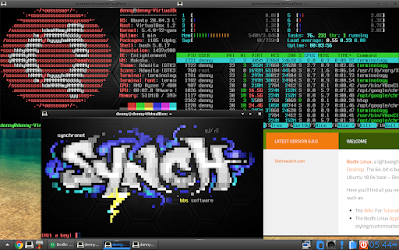
When I first installed Bodhi, this is what I was treated too: (click any of these images to enlarge them to full size)


It's not ugly, but It's not for me. Green is just not a color I want a lot of on my desktop.

So, the first thing I did was change the theme to the default. It has some nice gun metal grey with blue highlights feels going, and that I can get behind.

Then I installed the entire Google Chrome browser after ditching the chromium browser that was installed. I like my drm content like netflix, which does not work with Chromium. (I know, Google Chrome is bloated).

I also installed neofetch, htop, and telnet services, to show off a little ansi art from my favorite bbs.

 A nice wallpaper, and a bit of tweaking, and I could use this as my daily driver. Here's my tweaks:


and this is my Bodhi tweaks doing some busy work:


You can see that Bodhi isn't even touching my resources, and this is already trimmed quite a bit from my real machine, because this is running in a virtual machine.

It's fast, very stable, and I love some of the old school touches to it. Like Terminology for a terminal emulator. You get all the fun of feeling like you are in a 80's or 90's hacker flick, with all the useful extras like multiple tabs...

If you are in the market for a new Linux Os, or just want to monkey around in a different desktop environment or a spartan Linux distro, Bodhi is for you.

This is Bodhi's website: https://www.bodhilinux.com/

And this is the download page: https://www.bodhilinux.com/download/

Friday, January 15, 2021

Thunar File Manager - My favorite Linux file manager


It may seem strange that anyone would wax poetic about a file manager. After all, mostly any Linux based file manager can do most of what Thunar does.

It's not just what it does however, it's the clean, fast, and virtually bug free manner in which it does it.

Thunar for me has three distinct advantages over what came as default for my chosen operating system, Ubuntu 20.04 lts, which is gnome 3's default file manager, nautilus.

First off, file transfer speed. I can't for the life of me tell you why, but thunar transfers files faster than nautilus does. And it's not by a small factor, at least as far as I've seen on my machine.

Secondly, it's far less buggy than nautilus is, from my own personal experience. Moving large files with nautilus can cause lag, or even outright complete stop of the program itself, to the point I may have to terminate the app manually. I never have this issue with thunar, so it's clearly a nautilus issue.

Third is the large amount of plugins/addons for thunar. I don't personally use much for addons, but it's a nice feature.

As the page at https://docs.xfce.org/xfce/thunar/start says: 

"Thunar is a modern file manager for the Xfce Desktop Environment. It has been designed from the ground up to be fast and easy-to-use. Its user interface is clean and intuitive, and does not include any confusing or useless options. Thunar is fast and responsive with a good start up time and directory load time. Thunar is accessible using Assistive Technologies and is fully standards compliant."

I thought I would also add this small blurb from Thunar's Wikipedia page:

"Thunar is a file manager for Linux and other Unix-like systems, initially written using the GTK+ 2 toolkit and later ported to the GTK+ 3 toolkit. It started to ship with Xfce in version 4.4 RC1 and later. Thunar is developed by Benedikt Meurer, and was originally intended to replace XFFM, Xfce's previous file manager. It was initially called Filer but was changed to Thunar due to a name clash.[2]

The main goal of the Thunar project is to create a file manager that is fast, clean, and easy to use.[3][4] It is designed to start up faster and be more responsive than some other Linux file managers, such as Nautilus and Konqueror.[5] Accessibility, another goal of the project, is accomplished using GNOME Accessibility Toolkit. Like the rest of Xfce, Thunar is designed to comply with standards, such as those stated at freedesktop.org. Thunar is simple and lightweight by design, but its functionality can be extended through plugins.

Thunar is the Old Saxon name of god of thunder in Norse mythology, and uses Mjölnir, Thor's hammer, as its icon."

You can get thunar from your Linux distro's package manager or "store".

If you have issues with stalls and other frustrating things with your file manager, I think you might like Thunar.

-Denny


Tuesday, November 3, 2020

dpkg-repack to the rescue!

In my need to back up debs from my installed system (trying to fix Brostrend's idiotic mistake) I found a very useful tool!

For years I would just backup /var/cache/apt/archives to my storage drive, and call it a day.

This doesn't work anymore for Ubuntu because not all the debs that are installed are in that folder anymore.

Using the great info I found at AskUbuntu, i first used apt-get to install dpkg-repack, then made a folder on my boot drive named repack, changed directory to that folder, and then I ran the command dpkg-repack `dpkg --get-selections | grep install | cut -f1`.

In just a few minutes I had a folder named repack with every single deb package i had installed in the folder.

For me this is very very useful.

According to the AskUbuntu article, sudo dpkg -i *.deb launched from inside the repack folder will re-install every debian package in that folder.

I haven't personally tried this yet, but when I do, if this goes other than planned, I will update this article.

I'm not 100% certain whether it handles all my dependencies yet, but I will let you know once I have confirmation.

-Denny

The stupidity of Brostrend wifi adapters


I bought an ac1200 from them. Let me first say in all fairness, if you can get it to run, it's very nice. I am writing you via it right now.

The stupidity comes in when they give you a wifi adapter for Linux that by their own admission, needs a driver FROM THE INTERNET.

They told me via email that the driver on the cd is not recommended for use.

This is the stupidest possible issue you could ever have with a device that you use to gain access to the internet (kind of like having a gasoline driven car in the 1600's, gasoline doesn't exist yet.)

If I buy a wifi device, i expect that it will come with EVERYTHING i need to gain access to the internet, including a driver that does NOT need a internet connection to be installed.

Secondly, I know this can be done. (Brostrend said it was impossible, they are either completely clueless, or lying, or both).

How do I know this? I own several wireless N devices that come with a driver that has worked from Ubuntu 10.04 until today, (yes, they run on 20.04 lts beautifully).

I would still be using them, but they are dramatically slower than the ac1200.

The moral of my story: either don't buy a Brostrend device for Linux at all, or also buy a model known to work with Ubuntu as well, without needing a internet connection, so you can install the blasted drivers for the Brostrend device.

All I can say is thank goodness I have those older wifi n adapters lying around, or I would be internet-less.

 Thanks for being serious screw ups, Brostrend.

-Denny


Thursday, October 15, 2020

Fishing Planet fix for Ubuntu

If you are like me and you like to catch a few fish now and then on fishing planet but have had no satisfaction with getting it to work on Ubuntu (or other Linux distro's) via steam lately, then look no further.

Thanks to a person on the steam discussion boards, we have a fix that will let you play again.

It seems the problem is a missing file.

I have compiled a visual walk through of the installation process of these folders and files: (click photos to enlarge)


Here I am extracting the file via right clicking the file in my downloads folder and choosing "extract here".

Once this is done, you should have this folder. We need a folder inside it that is labeled "Fishing Planet".

Copy the "Fishing Planet" folder. 

Now we need to go to the Fishing Planet folder in steam. We start by making the .steam folder visible with control-h. Then enter the folder by double clicking it.

Next enter the steam folder. I know this may be confusing to some. For some reason there is a steam folder inside the .steam folder.

Then we enter the steamapps folder.


Now we enter the common folder.

Inside the common folder should be a folder that already exists. If you right click anywhere below the folders here, and choose paste, you will then get the next few screenshots:

Make sure to click "merge" on all of these messages.

and click merge again

and this is the finale "merge" we need. Fishing Planet should now run. You can now close these windows, and delete the files you downloaded if you wish.

One side note, for some reason Fishing Planet now has a white screen for a couple of seconds.

It still runs after this... and I am not certain why it's there.

The game plays fine for me, I hope this works for you as well.

Here is proof that it worked for me:


Here's the download link from my own personal Google Drive account:

https://drive.google.com/file/d/1hdJuXF-s78CyYWeJoQ7cS8TZsLe2e4qw/view?usp=sharing

Google Drive will try to "preview" this link for you. It can't because it's a zipped file. Instead, just click the little "down arrow into a box" looking download button on the top right of the browser window to download it.

Happy fishing!

-Denny

Friday, September 11, 2020

Ubuntu versus Arch


Now before I begin, I know there is going to be some arch guy telling me just how wrong I am. Save your breath for somebody else. 20 plus years experience makes me absolutely certain I am right.


And this is not some shot across Arch or Manjaro's bow. Because they have a solid place in the Linux community, and the have earned that place.


But the truth is that for the great majority of Linux users, something like Ubuntu is the best choice for them. Why?


If you are not a car person, you might not get this, but Ubuntu is a Subaru forester. It's not going to go 300 miles an hour. It's not the sharpest thing on the road. It's not ugly, it's practical. And I love it.


Ubuntu is the car you buy that 20 years later, if you've kept the maintenance up on it, it's run without a hiccup continuously. A car you can give to the kid at 20 years of age and know it's not going to be dead on the street somewhere. Reliability is it's name.


Arch (especially Manjaro, but this fits most archs)... are that sweet 72 Plymouth road runner with the holley double pumpers, 440 hemi in competition orange. The car that has been tuned to perfection by her owner. When it's tuned right it's formidable, beautiful...


But in a week's time the timing is off, the carb is screwed up, and the tank is nearly empty because Plymouth's purpose was not fuel economy.


The Arch users car doesn't want to turn over, and he spends an hour and a half getting it running again. 


The Ubuntu user walks up to his car for 20 years straight, and it has turned over every time. Yeah, it needs a oil change every 3k miles. Yeah, once every 5-7 years she needs new tires. And yes, the Ubuntu machine has never blown the doors off the competition. But the Ubuntu user isn't yelling at his machine because it just won't start. 


This is, for the most part, a very accurate statement. Their have been outliers over the years, but as a whole this description is spot on.


To sum this up for non car people. Ubuntu is rock solid and reliable the great majority of time. Arch is not reliable, but if you get it tuned right, it's a beautiful thing to behold. But you will be fixing it far more often.


There's a reason none of the companies I work with are running Arch on their servers. It's usually fedora, red hat, Ubuntu or Debian.


One strange last thing to note... And in truth I never understood this.. most of arch is identical to Ubuntu, fedora, Debian, etc... Their is different tweaks in the UI or GUI, there are different package managers, but in truth in the guts of the machine, they are running the same kernel with the same set of gnu utilities, and either the exact same programs, or ones that serve the same purpose.


For the life of me, I have never understood why arch and Ubuntu run so very differently...

-Denny

Thursday, August 27, 2020

Flameshot - My favorite screenshot utility for Linux


A friend of mine by the name of Peter Brown introduced me to Flameshot, and I love this screenshooter.

I always have been a fan of xfce4-screenshooter, simply for the fact that it was "just enough" of a screenshooter utility. And it still is, but... Flameshot has very useful tools and is just so handy I am now a Flameshot man.

Any screen capture utility can take the entire screen. Where Flameshot shines is all the extra tools that are available for you when you select a section of an image.

Before I show my own screenshots of this awesome app, I wanted to add this great gif from https://github.com/lupoDharkael/flameshot. It does a lot better job than my own work below.


I had to share that, the team made such a great showing of their useful works. These next shots are of the tools I love the most.


Here is Flameshot's menu. There are some great options here, like sharing to imgur, pinning it to the desktop, and stuff like that. But my favorite options are those below the image.


First off, holding right click gives you this quick color chooser. I usually pick the red or blue because those seem the most visible, but it's nice having the options.


These screen captures are out of sync, so forgive me, but I love the draw arrows utility, which is what this one is showcasing. The arrow on the bottom tool set here is so useful for pointing out details of screenshots you capture.


Scrolling the mousewheel will let you choose the size of your text. (and other tools). This is so useful for adding info quickly to images. (Yes, this software is awesome.)


There's a lot going on here, but what I am trying to point out is the blur tool. As you can see in the middle, I was able to blur out some of the text. The tool that does this is the one that looks like a bunch of dots together, on the bottom bar.


This is me showing the addition of circles, open boxes and filled boxes. I use these tools often to highlight specific portions of my images.


This is me just showing the useful right click menu (once you launched flamshot) in your window manager's running apps section.

These tools prove useful for me very often.

For help in installing this software, go here: https://flameshot.js.org/#/getting-start

Here is their homepage: https://flameshot.js.org/

I think you'll be glad to add this app to your app tool belt. :)
-Denny

Thursday, August 20, 2020

MX Linux 19.2 - antiX on steroids


With the release of MX Linux I just had to try it out. I've been a fan of antiX for some time, and MX Linux being a child of antiX in many ways, I have also had an affinity for it as well.

There are a few "flavors" to choose from, XFCE, KDE and a fluxbox option.

I tried the XFCE option. The first thing I have to say is, for a lightweight distro, it's rather beautiful. I also like the amount of tools that were readily at my fingertips.

So, whenever I take one of these jaunts through a new Linux distro, the first thing I notice is what the major tools are that I would use every day. This is usually the browser, the text editor, the file manager, the media manager, and the terminal app.

MX comes with firefox browser, vlc media player, thunar file manager, a text editor that I have never seen before called featherpad text editor, and good ole' xfce4 terminal.

I have to say, two things I loved immediately, tons of tools and a quick button to get to the guts of what hardware is installed. These two things might make MX my standby usb key distro for pc problem solving.

Here are the screenshots I grabbed while strolling through the live boot: (click to enlarge)


This is a great starter screen. Tons of information at my fingertips, all the tools i could ever want for tweaking, codecs for my media.. quick access password info for checking out the distro... This is simple and genius, I love it.


This is just a vanilla shot of the distro. clean, simple, beautiful. And that conky is simple, beautiful, and gives me the info I want now. There are a lot of conky options pre-installed for those conky lovers out there. (I monked with it for a bit, see one of my other conky setups below)


I found this and I like it. Quick access through "mx tools" for nvidia driver install, codecs install, and so much more.


MX isn't the lightest distro I've seen. Peppermint OS (still my fave lightweight) is gentler on ram than this. But still, MX is no slouch.


There were a lot of beautiful wallpapers, this one is my fave.


This was the text editor available. I've never heard of it, but it is gentle on resources and runs well enough.


This (and this screenshot below) are one of the things that got special attention from me. This is a very useful tool if your use for MX is to diagnose a computer's issues through live boot.


This is the quick system info screen i show above in menu. Again, I love this idea. Quick info at my fingertips.


This definitely hearkens back to MX's old school antiX heritage. I haven't seen a PPP connection in a very long time. If you have one, you are good to go.


This was just me messing with one of the many conkey pre-installs. There are a lot of other options. Very nice indeed.

All in all this is a very well rounded distro. And MX seems to get better with age. If you would like more information, I am including MX's website and distrowatch page URLs below.


Homepage: https://mxlinux.org/

Distrowatch: https://distrowatch.com/table.php?distribution=mx


-Denny